Prevent CCTV Camera Connection Issues: 7 Steps
Table of Contents
- Why CCTV Camera Connection Issues Matter
- Step 1: Plan Your CCTV Camera Network Setup Correctly
- Step 2: Diagnose and Fix CCTV Camera Power Supply Issues
- Step 3: Improve CCTV Camera Wi-Fi Signal Strength
- Step 4: Configure Your Router and Network for Camera Stability
- Step 5: CCTV Camera Offline Troubleshooting: Spot Issues Early
- Step 6: Secure Your Camera System to Prevent External Interference
- Step 7: Test, Monitor, and Maintain Connection Stability
- Frequently Asked Questions
Last Updated: October 8, 2026
Why CCTV Camera Connection Issues Matter
CCTV camera connection problems cost businesses and homeowners time, money, and peace of mind. A camera that drops offline defeats its purpose.
Connection failures happen for predictable reasons. Most are preventable with the right setup from day one. Most connection problems are preventable with the right setup from day one.
Step 1: Plan Your CCTV Camera Network Setup Correctly
The foundation of a reliable CCTV camera system is a solid plan. Most connection problems start here, people rush into installation without thinking through their network capacity or topology.
Your network needs to handle the load. Each camera consumes bandwidth. Multiple cameras streaming simultaneously can overwhelm an undersized router or internet connection. Dropped frames, timeouts, and disconnects follow.
Wired vs Wireless: Which Setup Prevents Connection Loss
Wired connections are more stable. Ethernet cables don't suffer from interference, distance limits, or signal degradation, so a camera plugged into a PoE switch stays connected reliably. Wireless cameras trade that stability for flexibility: Wi-Fi weakens over distance, passes through walls, and competes with other devices, so on large properties or through thick walls, wireless alone may not work.
The best approach combines both:
- Use wired connections for permanent, critical cameras
- Use wireless for flexible, temporary, or hard-to-reach locations
- Run Ethernet cable to areas where Wi-Fi struggles
Calculate Your Network Capacity Before Installation
Before you buy cameras, know your network limits. Internet bandwidth and local network capacity are two different things. A typical security camera uses 1-5 Mbps per stream, so four HD cameras need 4-20 Mbps, fine for most residential internet until you add streaming, gaming, and other devices competing for the same pipe.
Check your internet speed with a speed test site. Security systems need reliable upload speed to send footage to the cloud or your phone, under 2 Mbps, cloud backup will struggle.
Step 2: Diagnose and Fix CCTV Camera Power Supply Issues
A camera without power is offline. Power problems are silent killers, the camera stops working, and you don't know why until you check.
Most modern security cameras use Power over Ethernet (PoE). One cable carries both data and power. This simplifies installation and reduces failure points. But PoE switches and cables must be configured correctly.
PoE Power: Measurable Checks That Work
PoE switches deliver power through Ethernet cables: a standard PoE switch supplies up to 30 watts per port, and high-power PoE (PoE++) up to 90 watts. Check your camera's power requirements on its spec sheet.
Do this check right now:
- Count your cameras and their power requirements in watts
- Add them together
- Check your PoE switch's total power budget (usually printed on the unit)
If your cameras exceed the budget, they'll compete for power: some stay online, others drop offline intermittently, the most common PoE failure pattern.
Backup Power and Redundancy
Power outages knock cameras offline, so add backup power if you want continuous recording. An Uninterruptible Power Supply (UPS) keeps your PoE switch and network running; a modest unit costs under AUD 200 and typically keeps a small camera system online for 1-2 hours, enough time to identify the outage or switch to backup internet.
Step 3: Improve CCTV Camera Wi-Fi Signal Strength
Wireless cameras depend on signal strength. Weak signal causes intermittent disconnects, buffering, and dropped frames.
Signal strength is measured in dBm (decibels relative to one milliwatt). Closer to zero is stronger. Most cameras need at least -67 dBm to stay connected reliably. Below -80 dBm, expect problems.
Positioning and Antenna Orientation
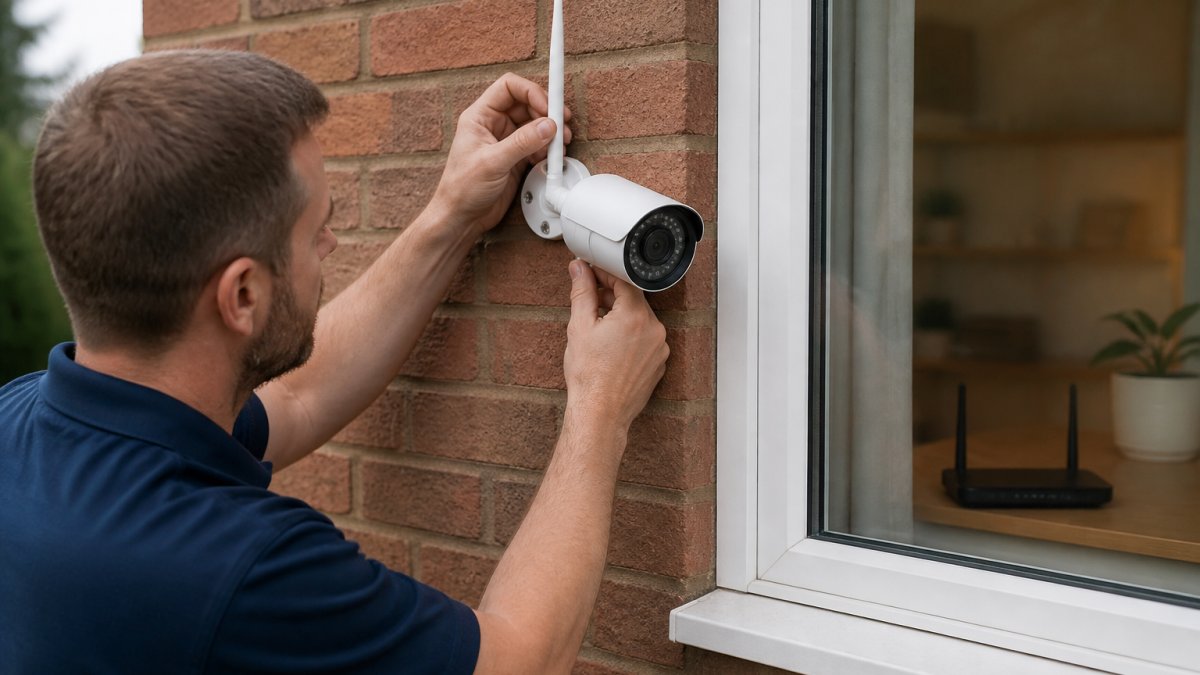
Where you place the camera matters more than the router's power: a camera 5 metres away with clear line of sight connects reliably, while the same camera 10 metres away through two walls will struggle. Most outdoor cameras have external antennas, orient them vertically for best range, and check the manual for guidance.
Reduce Wireless Interference and Dead Zones
Wi-Fi operates on 2.4 GHz and 5 GHz bands. The 2.4 GHz band travels further but is crowded by microwave ovens, cordless phones, baby monitors, and neighbours' networks.
To reduce interference:
- Move your router away from microwave ovens and cordless phones
- Use Wi-Fi analyser apps to find less-crowded channels
- Switch to a different channel in your router settings
Dead zones are areas where signal is too weak. If you have a dead zone, move the camera closer to the router or add a Wi-Fi extender.
Step 4: Configure Your Router and Network for Camera Stability
Router configuration is where most people get stuck, yet a few simple settings prevent 90% of connection problems. Your router assigns IP addresses to devices, and if a camera's address changes, it loses its connection settings, the leading cause of intermittent offline cameras.
DHCP Reservations and IP Address Management
DHCP assigns IP addresses automatically, which is convenient but unreliable for cameras, every time one reconnects, it might get a different address. The fix is a DHCP reservation, telling the router to always give the same IP address to a specific camera so it stays there permanently.
How to set a DHCP reservation:
- Log into your router's admin panel (usually 192.168.1.1 or 192.168.0.1)
- Find the DHCP settings or Reserved IPs section
- Note the camera's MAC address (printed on the camera or in the camera's settings app)
- Create a reservation: assign the camera's MAC address to a fixed IP address (e.g., 192.168.1.100)
- Save and restart the router
Once reserved, the camera keeps that IP address. Connection settings stay stable. No more random disconnects.
Port Forwarding and Firewall Rules
Port forwarding lets you access your camera remotely through your router; without it, your phone can't see the camera when you're away from home. It works by routing incoming traffic on a specific port to your camera's internal IP address, for example, forwarding port 8080 to your camera at 192.168.1.100.
To set up port forwarding:
- Log into your router's admin panel
- Find the Port Forwarding section
- Enter: External Port (e.g., 8080), Internal IP (your camera's reserved IP), Internal Port (usually 80 or 443 for cameras)
- Save and test by accessing your camera from a mobile device outside your network
Firewall rules control which devices can communicate, so make sure your camera's IP address isn't blocked.
Step 5: CCTV Camera Offline Troubleshooting: Spot Issues Early
Even with perfect setup, cameras go offline sometimes, the key is spotting problems before they become chronic, and understanding how to prevent CCTV camera connection issues from recurring. Most offline cameras show a pattern, disconnecting every evening at 6 PM when someone streams video, or dropping offline every few days at random.
Symptom-to-Cause Troubleshooting Reference
Use this table to diagnose your camera's problem quickly:
| Symptom | Likely Cause | First Check |
|---|---|---|
| Camera offline constantly | Power supply or PoE issue | Check PoE switch power budget and cable connection |
| Drops offline every few hours | Wi-Fi interference or weak signal | Check signal strength and move camera closer to router |
| Offline at specific times daily | Network congestion or bandwidth conflict | Check what else is running at that time |
| Intermittent brief disconnects | Firmware bug or app issue | Update camera firmware and app to latest version |
| Offline after power outage | IP address conflict or DHCP issue | Create DHCP reservation for the camera |
| Offline after router restart | Port forwarding misconfigured | Verify port forwarding rules are saved |
Start with the most likely cause. If the camera drops offline every evening, it's probably bandwidth congestion, not a hardware failure. If it's offline constantly, it's usually power.
Firmware and App Compatibility Checks
Camera firmware runs on the camera itself, while app firmware runs on your phone or computer, mismatches cause connection problems. Check your camera's current firmware version, download the latest from the manufacturer's website, and update the camera first, then your phone app. After updating, restart the camera by unplugging it for 30 seconds and plugging it back in to clear temporary glitches.
Step 6: Secure Your Camera System to Prevent External Interference
Security and stability go together. An unsecured camera system is vulnerable to hackers and interference. A secure system is also more stable because unauthorised access is blocked.
Most camera connection problems are internal, power, signal, configuration. But external threats can cause disconnects too. A hacked camera can be remotely shut down or flooded with traffic.
Strong Passwords and Two-Factor Authentication
Change your camera's default password immediately, default passwords are public and anyone can find them online. Use a strong password of at least 12 characters mixing uppercase, lowercase, numbers, and symbols, and store it in a password manager. Enable two-factor authentication if supported: it requires a second verification (usually a code sent to your phone), blocking hackers even if they steal your password.
Network Segmentation and Access Control
Network segmentation means separating your cameras onto their own network or VLAN (Virtual LAN), isolating them from your personal devices and the internet. If you don't have a VLAN, at minimum change your router's default admin password, disable remote router access unless you absolutely need it, enable the router's firewall, and hide your Wi-Fi network name (SSID) if possible.
Step 7: Test, Monitor, and Maintain Connection Stability
A camera system is not a set-and-forget installation. It needs regular testing and maintenance to stay reliable.
Most connection problems develop gradually. A camera might work fine for months, then start dropping offline as interference increases or equipment ages. Catching these problems early prevents outages.
Regular Testing and Performance Monitoring
Test your cameras weekly: check that each one is online and recording via the status indicator in your camera app (green means online, red or grey means offline). If a camera is offline, follow the troubleshooting steps in Step 5 immediately to prevent data loss. Monthly, monitor signal strength with your camera app or a Wi-Fi analyser, if it drops below -70 dBm, consider moving the router or camera, and test remote access from outside your home network, checking port forwarding settings if it fails.
Preventive Maintenance Schedule
Perform these tasks quarterly:
- Inspect camera lenses for dirt, dust, or condensation. Clean with a soft cloth.
- Check all cable connections are tight and undamaged.
- Test backup power (UPS) by unplugging the main power for 30 seconds.
Perform these tasks annually:
- Replace weatherproofing seals on outdoor cameras if cracked or loose.
- Clean or replace air filters on camera housings if dusty.
- Upgrade Wi-Fi router if it's over five years old.
A stable CCTV camera system requires planning, configuration, and ongoing care, but the effort pays off with reliable footage, remote access, and peace of mind.
Frequently Asked Questions
Why does my CCTV camera keep going offline?
CCTV cameras drop offline due to weak Wi-Fi signal, power supply fluctuations, IP address conflicts, or firmware incompatibility. Check your wireless signal strength first: cameras typically need at least -67 dBm to stay connected. If wired via Ethernet, verify the PoE switch is delivering power consistently. Intermittent disconnections often indicate network congestion or DHCP lease conflicts, reserve a static IP address for each camera to prevent this.
How can I improve the Wi-Fi connection for my CCTV camera?
Position your camera within 10-15 metres of the router with clear line of sight. Angle the router's antenna vertically to maximise coverage. Move the camera away from metal objects, microwaves, and cordless phones, which cause wireless interference. If your camera is further away, use a Wi-Fi extender or mesh network system. For critical cameras, switch to a wired Ethernet connection, it eliminates signal strength issues entirely.
Can a weak internet connection cause CCTV cameras to disconnect?
Yes. CCTV cameras need stable local network connectivity to stay online. A weak internet connection to your ISP doesn't directly disconnect local cameras, but poor router performance or overloaded bandwidth can cause them to drop. Ensure your router isn't saturated by other devices. Separate your cameras onto a dedicated network or VLAN if possible. For remote viewing, use DDNS or a cloud service so that internet outages don't break your ability to monitor.
What should I check if my CCTV camera goes offline after installation?
Follow this order: (1) Confirm the camera has power, check the PoE switch or power supply with a multimeter. (2) Verify network connectivity, ping the camera's IP address from your computer. (3) Check for IP conflicts using your router's DHCP client list. (4) Review the camera's firmware version and update if needed. (5) Test Wi-Fi signal strength using a mobile app. (6) Restart the camera and router. If it stays offline, check your firewall rules and ensure the camera's port isn't blocked.
Connection stability is the foundation of effective security. A camera that's offline isn't protecting anything. At Cube Automation, we design CCTV systems that stay connected by planning the network correctly, securing power, optimising signal strength, and configuring routers for stability. Our team handles the technical setup so you don't have to worry about intermittent disconnects or missed footage. Get in touch with us to discuss a reliable camera system for your property.