Integrating Existing Smart Home Devices: A Step-by-Step Guide
Table of Contents
- Why Integrating Existing Smart Home Devices Matters
- Audit Your Current Smart Home Setup
- Understanding Smart Home Device Compatibility
- Choosing a Central Hub or Automation Controller
- How to Connect Smart Home Devices to One App
- Smart Home Automation Examples for Existing Devices
- Smart Home Device Troubleshooting and Maintenance
- Privacy, Security, and Account Management
- Frequently Asked Questions
Last Updated: October 18, 2026
Why Integrating Existing Smart Home Devices Matters
If you've already invested in smart home technology, the last thing you want to do is rip it all out and start from scratch.
Integrating existing smart home devices means bringing all your connected equipment under one roof, literally and digitally.
At Cube Automation, we help homeowners solve this exact problem. The challenge isn't the technology itself.
This guide walks you through the entire process. We'll show you how to audit your current devices, check compatibility, choose a central hub, and build automations that actually work.
Audit Your Current Smart Home Setup
Before you add anything new or buy a central hub, you need to know what you're working with. Most people underestimate how many smart devices they already own.
List all connected devices and their protocols
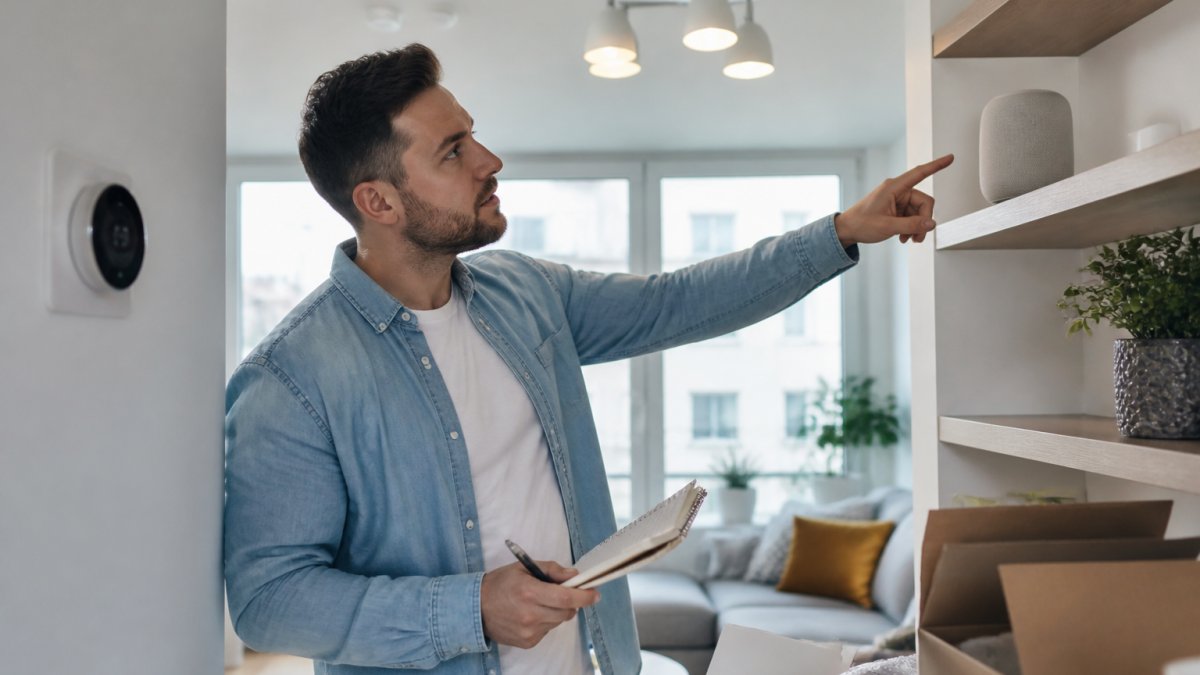
Start by walking through your home and writing down every device that connects to the internet or communicates wirelessly. This includes:
- Smart lights and bulbs
- Thermostats and climate control
- Security cameras and smart locks
- Smart speakers and voice assistants
- Doorbells, motion sensors, and switches
- Smart plugs and power strips
- Wearable devices that sync with your home
For each device, note:
- The brand and model number
- What it does
- How it currently connects (Wi-Fi, Bluetooth, Zigbee, Z-Wave, or proprietary network)
- Which app you use to control it
This list is your foundation. You'll reference it every time you make a decision about compatibility or upgrading.
Identify existing hubs and controllers
Many smart home devices work standalone through their own app. Some require a hub, a central device that acts as a bridge between your devices and the internet.
Check if you already have:
- A smart speaker with hub capability (Amazon Echo, Google Home, Apple HomePod)
- A dedicated hub like Samsung SmartThings, Hubitat, or Home Assistant
- A manufacturer-specific controller (some security systems or lighting brands provide their own)
If you have multiple hubs, that's often where the problem starts. Each hub creates its own ecosystem. Devices connected to one hub can't easily talk to devices on another.
Understanding Smart Home Device Compatibility
Smart home device compatibility determines whether your devices can actually work together. Without it, you'll have a collection of isolated gadgets, not an integrated system.
Wireless protocols: Wi-Fi, Bluetooth, Zigbee, Z-Wave, Thread, and Matter
Different devices use different languages to communicate. Understanding these protocols is essential.
Wi-Fi is the most common. Devices connect directly to your home network. Pro: easy setup.
Bluetooth works for short-range connections. Good for wearables and personal devices.
Zigbee is a mesh network protocol. Devices relay signals through each other, extending range.
Z-Wave works similarly to Zigbee but on a different frequency.
Thread is newer. It's a mesh protocol designed for reliability and low power.
Matter is the newest standard. It's designed to make all devices compatible regardless of brand.
A common mistake is assuming all devices on the same protocol will work together.
Checking manufacturer specifications before integration
Before you buy anything new or commit to a hub, verify compatibility on paper.
Go to the manufacturer's website for each device. Look for:
- Supported hubs and ecosystems
- Required protocols
- Any known incompatibilities
- Firmware version requirements
Write this down. Compatibility changes as manufacturers release updates. A device that didn't work with your hub six months ago might work now, or vice versa.
If the manufacturer's website is unclear, check the product manual or contact support directly. A five-minute phone call now saves hours of frustration later.
Choosing a Central Hub or Automation Controller
Your hub is the brain of the system.
The best hub depends on what you already own and what you want to add.
If you have mostly Apple devices and HomeKit-compatible products, Apple HomePod mini works well.
For mixed ecosystems with Zigbee and Z-Wave devices, Samsung SmartThings or Hubitat Elevation give you more flexibility.
If you want maximum control and don't mind technical setup, Home Assistant runs on any computer and supports hundreds of devices.
For professional installations with security systems, many installers use Control4 or similar platforms.
Your choice affects everything downstream. Pick a hub that supports the protocols your current devices use.
How to Connect Smart Home Devices to One App
Once you've chosen your hub, the next step is connecting everything and setting up unified control.
Setting up device pairing and network configuration
Device pairing is the process of telling your hub about each device and letting them communicate.
The steps vary by hub, but the general process is:
- Power on the new device and put it in pairing mode (usually a button press or factory reset)
- Open your hub's app and select "Add Device" or "Pair New Device"
- Follow the prompts to name the device and assign it to a room
- Test the connection by controlling it from the app
- Repeat for every device you want to integrate
This sounds straightforward. In practice, devices sometimes refuse to pair. Common fixes:
- Make sure the device is close to the hub during pairing
- Restart the hub and try again
- Check that your Wi-Fi network is strong in that location
- Update the device firmware before pairing
- Verify the device is compatible with your hub (check the manual again)
Network configuration matters too. If your home Wi-Fi is weak, devices will drop offline. Consider adding a mesh Wi-Fi system to ensure strong coverage everywhere. Most smart home hubs perform better on a dedicated 2.4 GHz network rather than 5 GHz.
Creating scenes and routines for centralized control
Once devices are paired, you can create automations, sequences of actions triggered by a condition or schedule.
A scene is a snapshot. You press one button and multiple devices change at once. Example: "Movie Time" dims the lights, closes the blinds, and turns off the thermostat's cooling.
A routine is time-based or condition-based. Example: "Good Morning" runs at 6 AM, turns on the bedroom lights, starts the coffee maker, and reads the weather aloud.
Start with simple routines. Pick one action you perform repeatedly and automate it. Once that works reliably, add another.
Most hubs let you create routines through their app.
Smart Home Automation Examples for Existing Devices
Real examples help clarify what's possible once your devices are integrated.
Lighting and climate control automations
Morning routine: At 6 AM on weekdays, bedroom lights brighten gradually over 10 minutes. Living room lights turn on at 30% brightness. Thermostat adjusts to 21°C.
Evening routine: At sunset, kitchen lights dim to 50%. Bedroom lights turn on at warm colour temperature.
Away mode: When the last person leaves home (detected by phone location), all lights turn off, thermostat switches to energy-saving mode, and security cameras activate.
Movie time: Lights dim to 10%, television turns on, and sound system activates.
These automations save time and energy. You don't have to manually adjust each device. They respond to your schedule and habits.
Security and convenience routines
Arrival routine: When the first person arrives home, front door unlocks (if authorized), entryway lights turn on, and thermostat returns to comfort mode.
Bedtime routine: All lights turn off, doors lock, security system arms, and thermostat adjusts for sleep.
Panic button: One button press locks all doors, turns on all lights, and sends an alert to your phone.
Maintenance alert: Sensors detect water leaks or unusual temperature changes and notify you immediately.
Security automations are where smart home integration really shines. Instead of checking each camera or lock individually, you get one unified view and can respond to alerts instantly.
Smart Home Device Troubleshooting and Maintenance
Even well-designed systems have hiccups. Knowing how to fix common problems keeps your setup running smoothly.
Common connection issues and how to resolve them
Device goes offline frequently: Check Wi-Fi signal strength. Move the hub closer or add a mesh network. Restart the device and hub.
Device won't pair: Ensure pairing mode is active. Check compatibility with your hub. Try pairing closer to the hub.
Automation doesn't trigger: Verify the trigger condition is correct (time, sensor reading, etc.). Check that all devices in the automation are online.
App shows device but can't control it: Restart the hub. Log out and back into the app.
Most issues resolve with a restart. If that doesn't work, check the manufacturer's support page or contact their help team.
Firmware updates and reliability
Manufacturers release firmware updates to fix bugs, improve compatibility, and add features. Neglecting updates is the top reason smart home systems become unreliable.
Set your hub to auto-update if available. For individual devices, check the app monthly for available updates. Install them during a time when you won't need the device.
Updates sometimes break compatibility. If a device stops working after an update, check the manufacturer's release notes or contact support. Rollback is sometimes possible, but usually you need to wait for the next update to fix the issue.
Privacy, Security, and Account Management
Integrating devices means centralizing control, and centralizing risk. Protect your system from the start.
Use strong passwords for your hub and app accounts. Enable two-factor authentication if available.
Secure your Wi-Fi network with a strong password and WPA3 encryption if your router supports it.
Review permissions for each device. Does your smart lock really need access to your calendar?
Check privacy policies for the hub and any cloud services it uses.
Update regularly. Security patches are released constantly. Outdated devices are vulnerable.
Monitor access. Most hubs let you see which devices are connected and who has access.
Integrating your existing smart home devices doesn't require replacing everything.
Frequently Asked Questions
How do I check if my existing smart home devices are compatible before integrating them?
Start by identifying each device's wireless protocol: Wi-Fi, Bluetooth, Zigbee, Z-Wave, Thread, or Matter. Check the manufacturer's documentation or the device's settings menu. List which devices use the same protocol and which use different ones. Devices on the same protocol integrate more easily. If you have mixed protocols, you'll need a central hub that supports multiple standards. Many modern hubs handle Wi-Fi and Zigbee, for example. Verify that any hub you choose explicitly supports the protocols your existing devices use before purchasing.
Can I connect smart home devices from different manufacturers to one app?
Yes, but it depends on your central hub and the devices' compatibility. A multi-protocol hub like those supporting Matter, Zigbee, and Z-Wave can bring devices from different brands into one interface. Some hubs offer a single app that controls all connected devices, while others require separate apps but allow automation between them. Before integrating existing devices, verify that your chosen hub supports the protocols your devices use and offers a unified app or control system. This is especially important when adding new devices to an older mixed-brand setup.
What should I do if my smart home devices won't connect after setup?
First, confirm that all devices are within range of your hub or Wi-Fi network. Check that firmware is up to date on both the hub and the devices, outdated firmware is a common cause of connection failures. Restart the hub and the problematic device. Verify you're using the correct network band (2.4 GHz vs 5 GHz) if your router supports both; many smart devices work only on 2.4 GHz. If issues persist, check for interference from other wireless devices or physical obstacles. If you're integrating older devices with a new hub, ensure the hub explicitly supports that device's protocol before troubleshooting further.
Do I need to replace all my existing smart home devices to integrate them?
No. Most existing devices can be integrated without replacement if you choose the right central hub. A hub that supports multiple wireless protocols (Wi-Fi, Zigbee, Z-Wave, Thread, Matter) can coordinate devices from different manufacturers and eras. However, very old devices or those using proprietary protocols may not integrate into modern systems. Before committing to integration, audit your current devices and their protocols, then select a hub that explicitly supports them. This approach preserves your investment while enabling unified control and automation across your home.